






Introduction
Google Analytics 4 (GA4) has replaced Universal Analytics, which stopped processing data on 1 July 2023, so GA4 is now the version of Google Analytics to set up on a Webflow site.
You can still use GA4 to track the actions that matter to your business. Just keep in mind that Google replaced the old “goals” with “conversions”, and later renamed conversions in GA4 to “key events” (Google Ads still calls them conversions). They serve the same purpose, but setting them up is a different process than it was in Universal Analytics.
First of all, let’s quickly cover what a conversion is.
What is a website conversion?
A website conversion is when a user of our website has taken a certain action that we have predetermined ourselves as a desired action.
For example, if a user moves to the pricing page, that’s an action, but it doesn’t mean that much to us because they are just moving around our website. But as soon as they take a desired action such as signing up to a newsletter or buying a product, then we have a conversion that makes sense to track.
Some other examples of website conversions include:
- Filling out a form
- Signing up for an email newsletter
- Clicking a specific button
- Making a sale
- Using a Burger King drive-thru
- Downloading a resource
What website conversions can we track in Webflow with GA4?
The easiest conversions to track in Webflow using Google Analytics 4 are file downloads and page visits. GA4 can’t see a Webflow form submission on its own, but there is a simple workaround: send users to a thank-you page after they submit a form, and track visits to that page. That’s what we are going to focus on.
There is a lot more that can be tracked if you’re willing to add Google Tag Manager to your website, but with the added complexity that this adds, it might be worth sticking to just using Google Analytics.
When setting up website tools, make sure they are simple enough that you’re happy to keep coming back to them to check-up on. There’s no point in setting up a complex tool that you immediately abandon.
Preparing website conversions in Webflow
We’re going to track a simple conversion of a user submitting a form by sending that user to a confirmation page.
To do this, we’re first going to add a simple page in Webflow for the confirmation.
Create a new page and give it a simple name like “thank you” or “confirmation”.
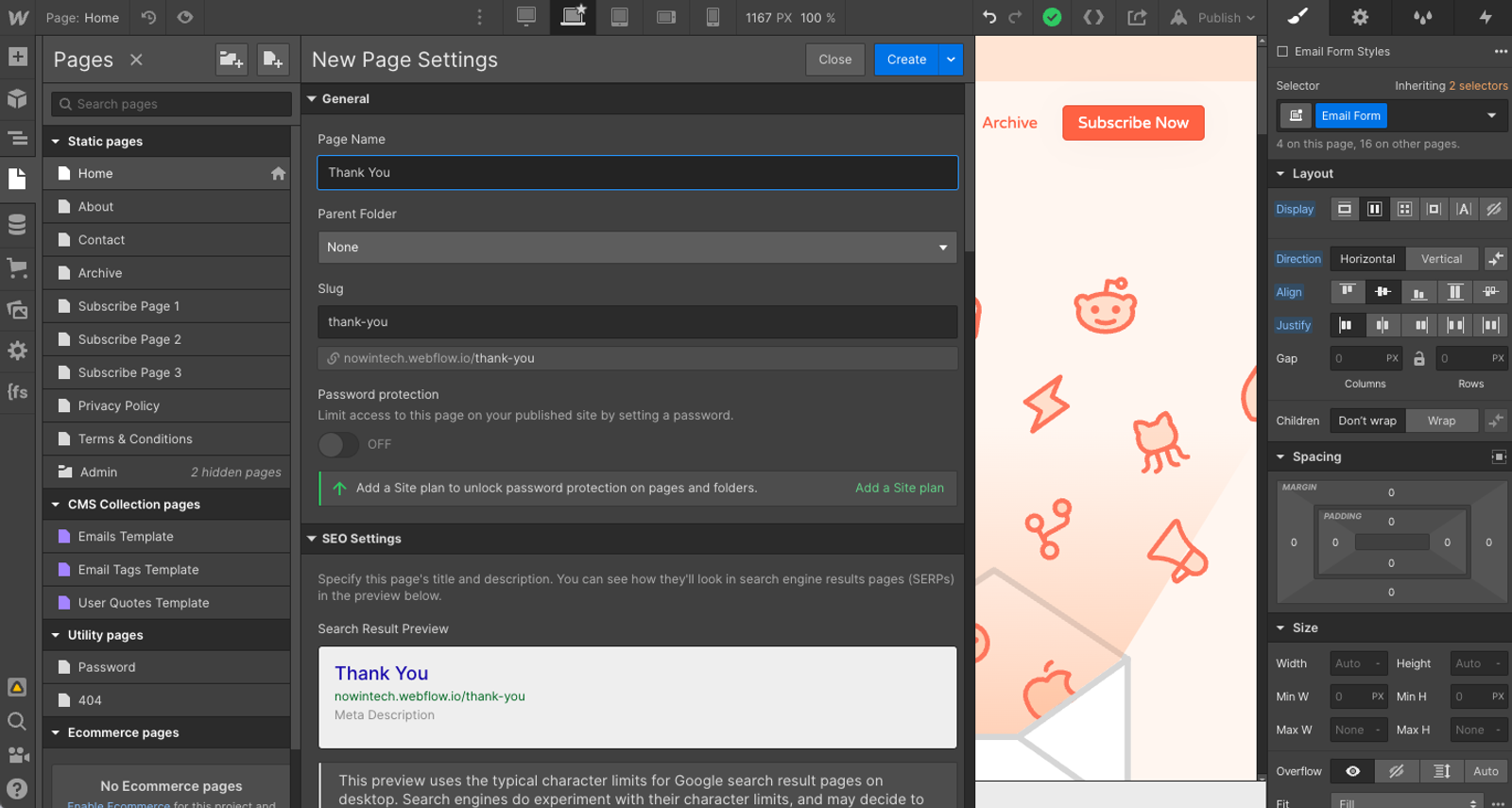
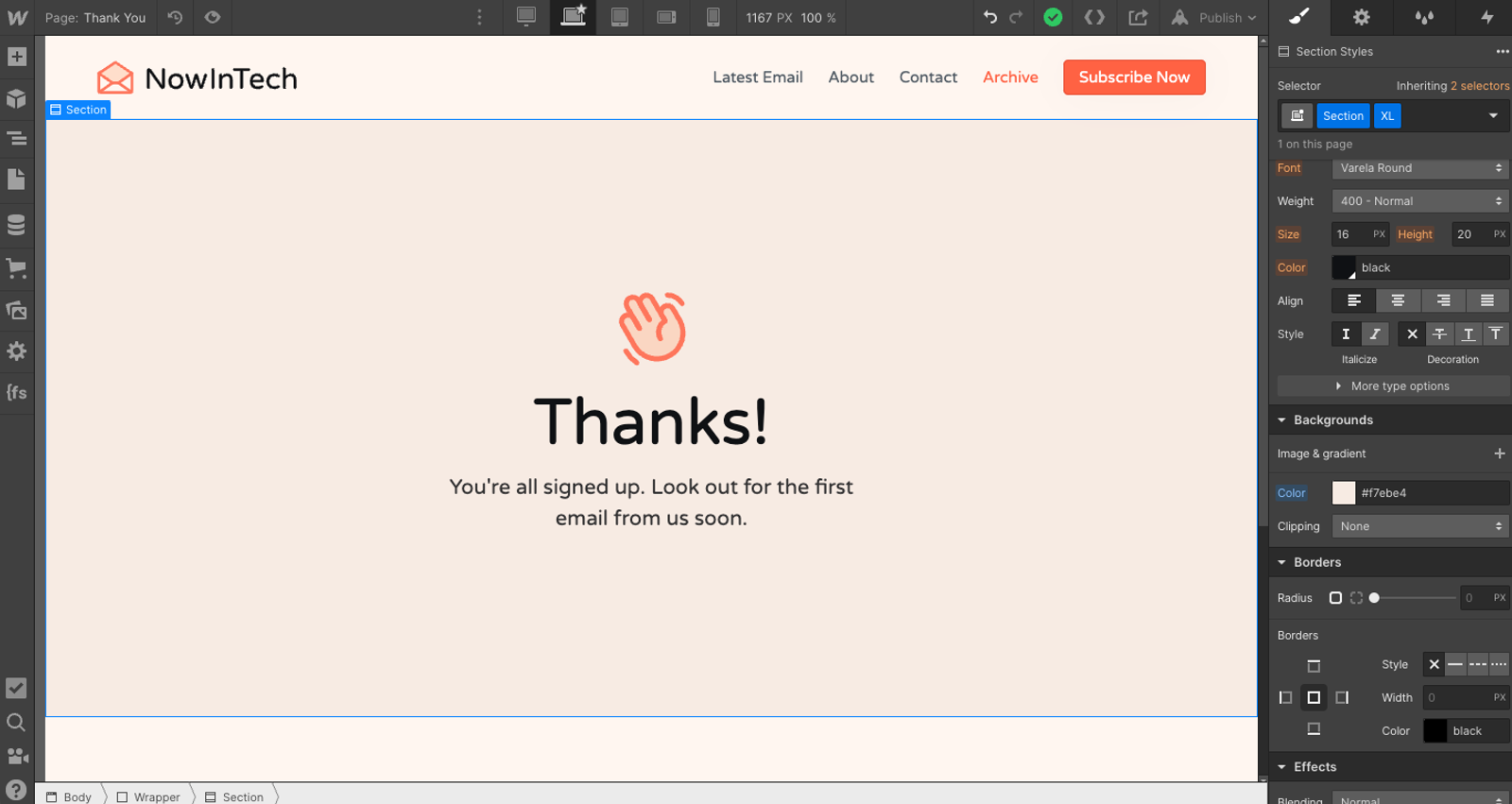
Add some simple page content such as the website navigation, footer, and a section letting customers know that the submission has been confirmed.
It might look a little something like this:
Now that we have the confirmation page set-up, we want to go to the forms around our website and redirect them to this page. Let’s do this to the email form on the homepage.
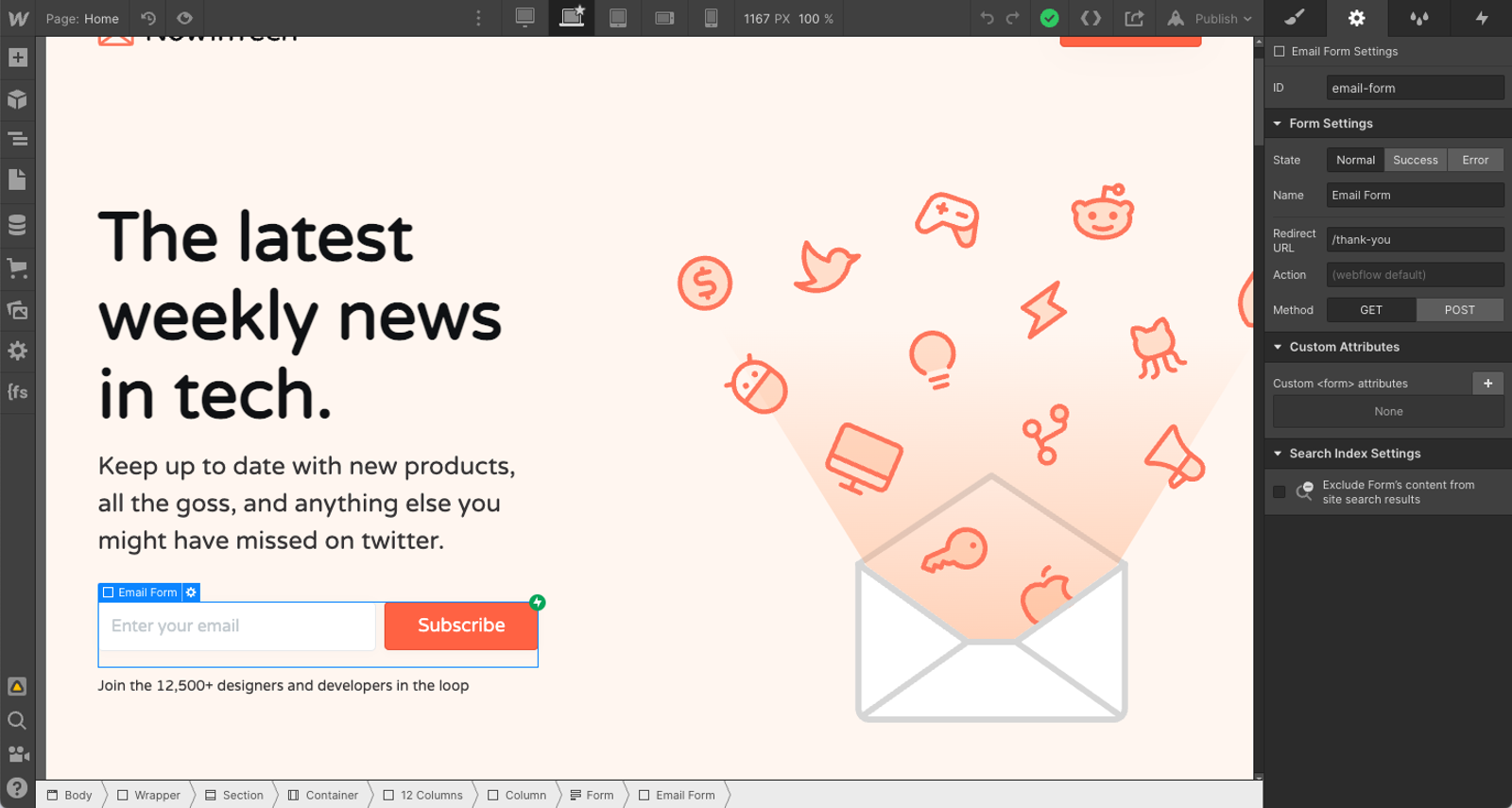
In the form’s settings, I’ve added a redirect url of /thank-you, which is going to take users to the newly created thank-you page once they have added their email.
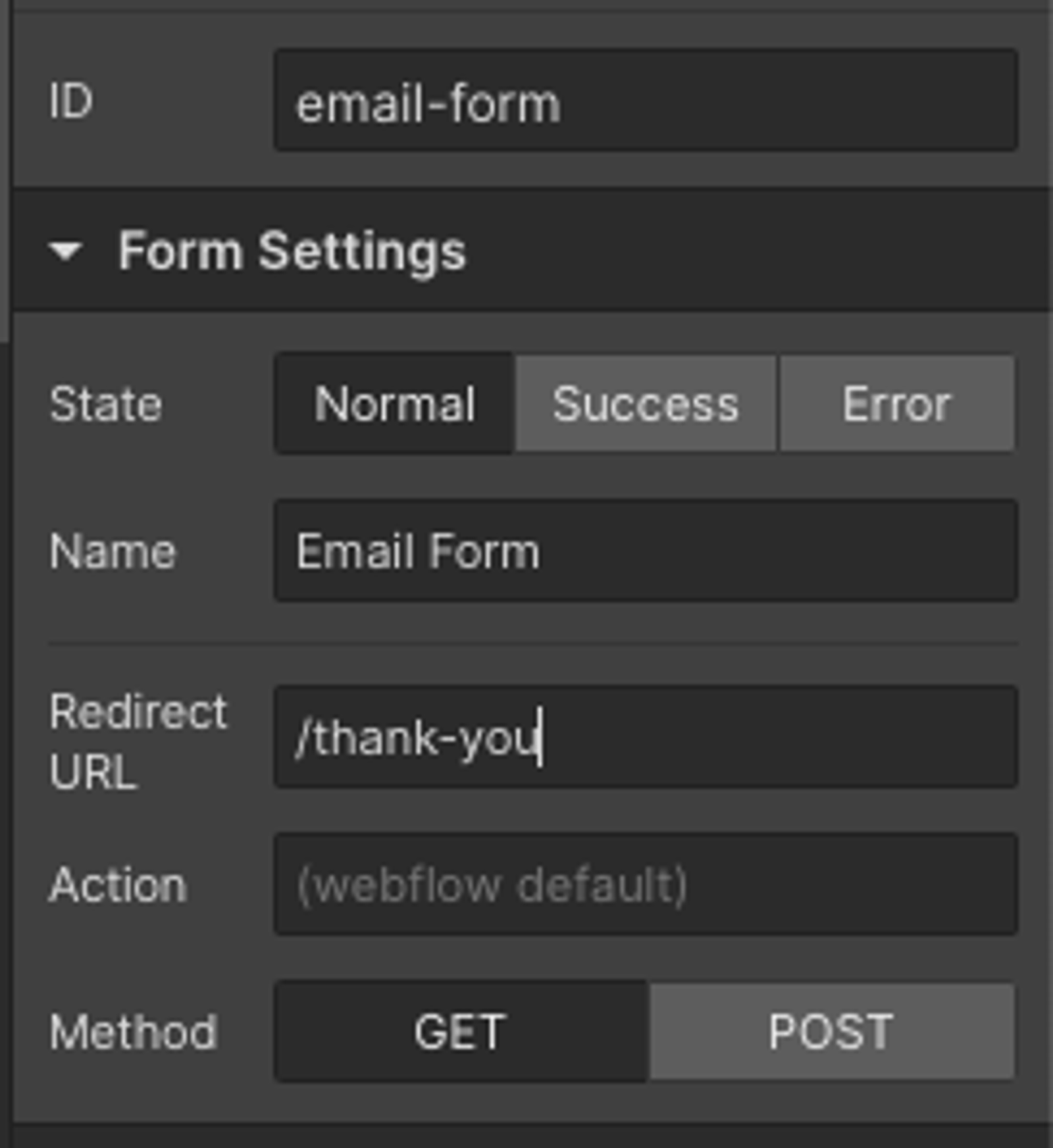
We will want to do this for every form submission we want to track. So you’ll want to go around your website and add the new redirect URL to all forms.
If you have multiple types of forms, you’ll want to add different confirmation pages to track the forms separately. So you might have a second confirmation page for users who fill out your contact form opposed to your newsletter form.
Tip: keep your thank-you pages out of search results by turning on “Exclude this page from search results” in the page’s SEO settings, so people can’t land on them without submitting the form.
With all of this set-up, we can now republish our Webflow site and hop over to Google Analytics 4. Make sure GA4 is connected to your Webflow site using your Measurement ID (it starts with “G-”) in your site’s Google Analytics integration settings.
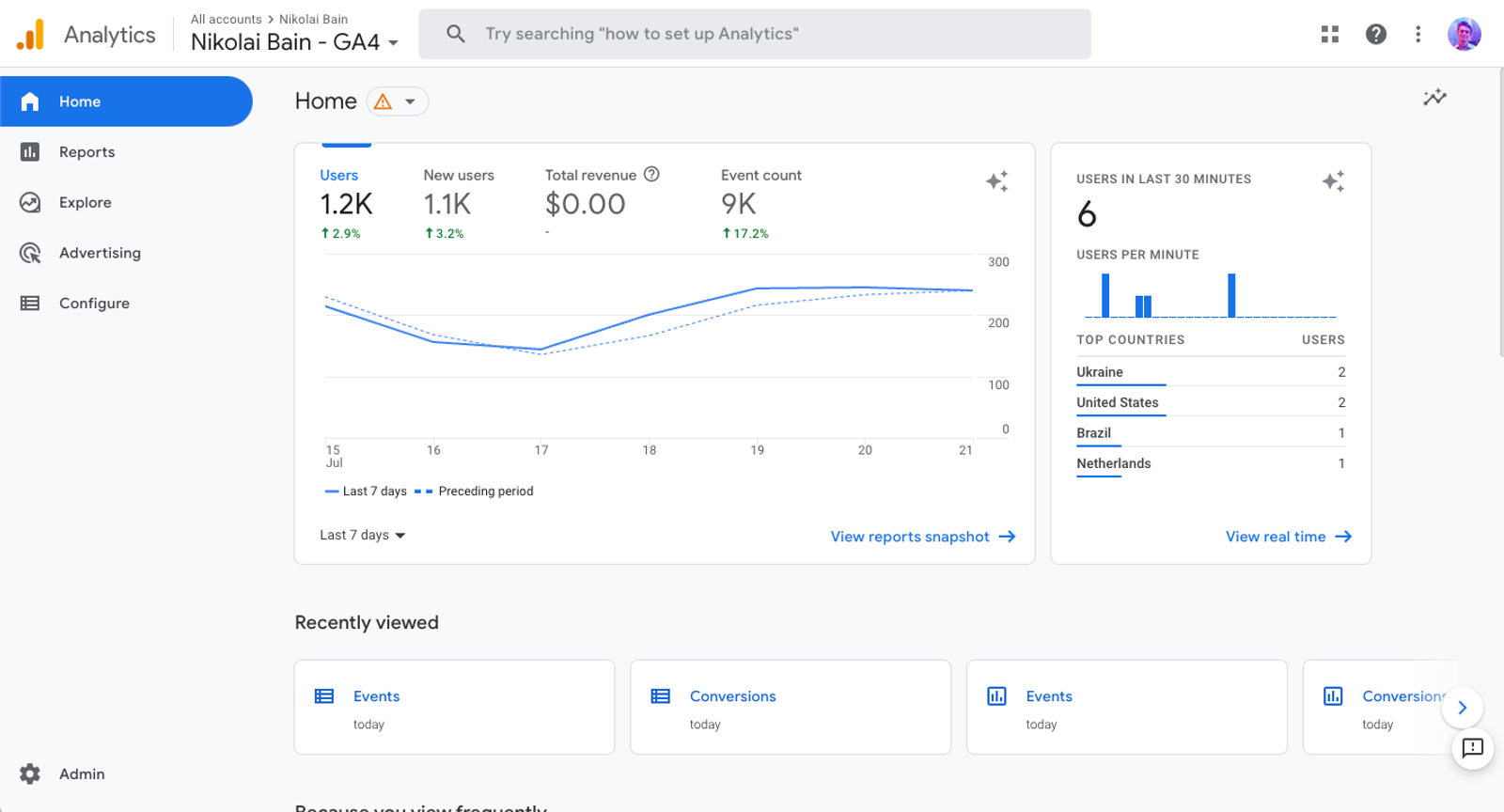
There is a lot of information to sort through, but for now we are going to focus on events. In the Reports tab, you can find events under Engagement.
When we scroll down, we can see all the different events across our website and how they are tracking.
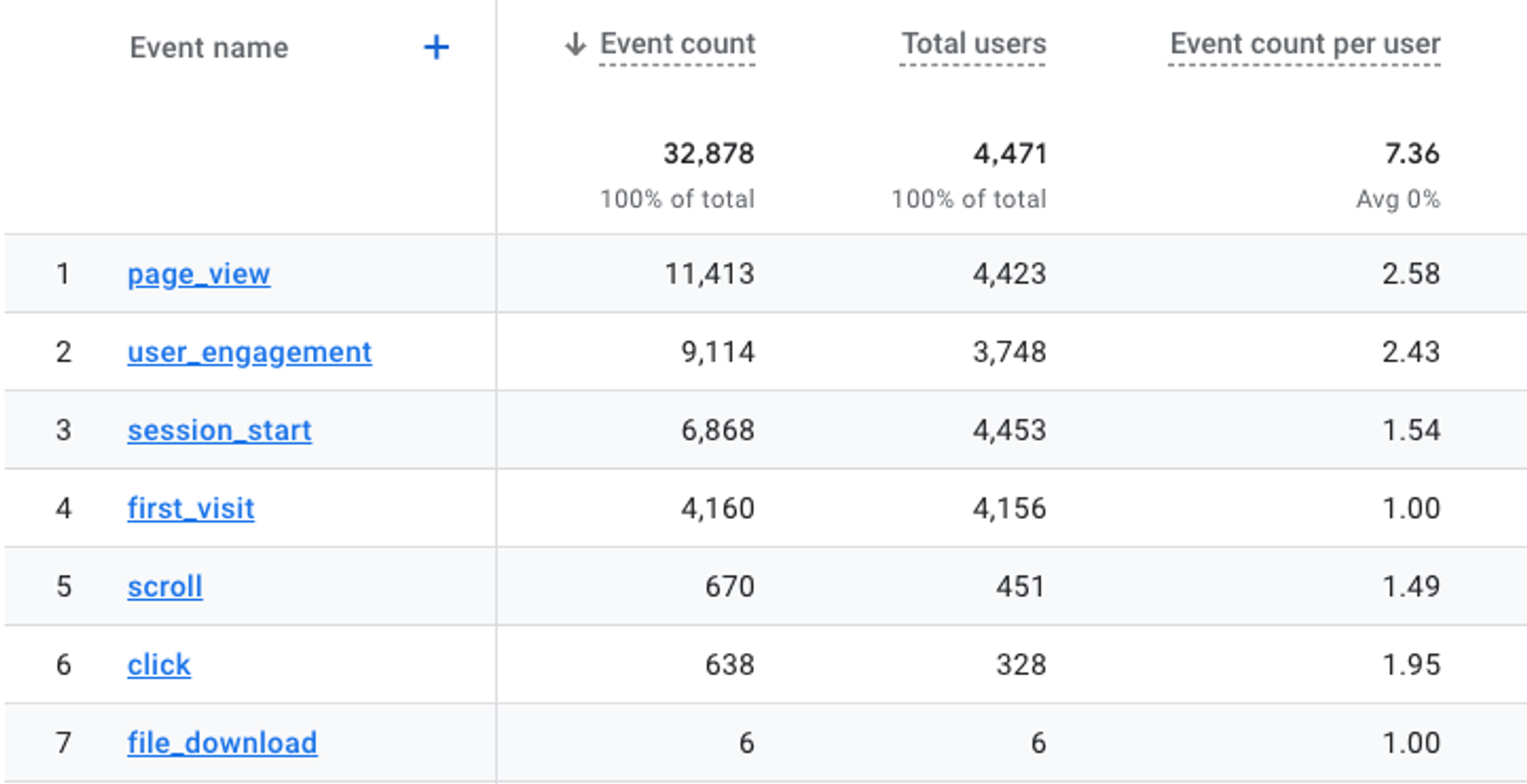
Currently the event we are wanting to focus on (redirect to a page after form submission) is not being tracked, so we will have to add a new event for this.
Let’s go to Events in the Admin area (previously under the Configure tab) to set these custom events up. Google moves GA4 menu items around from time to time, so if you can’t find it, look for “Events” in the Admin settings.
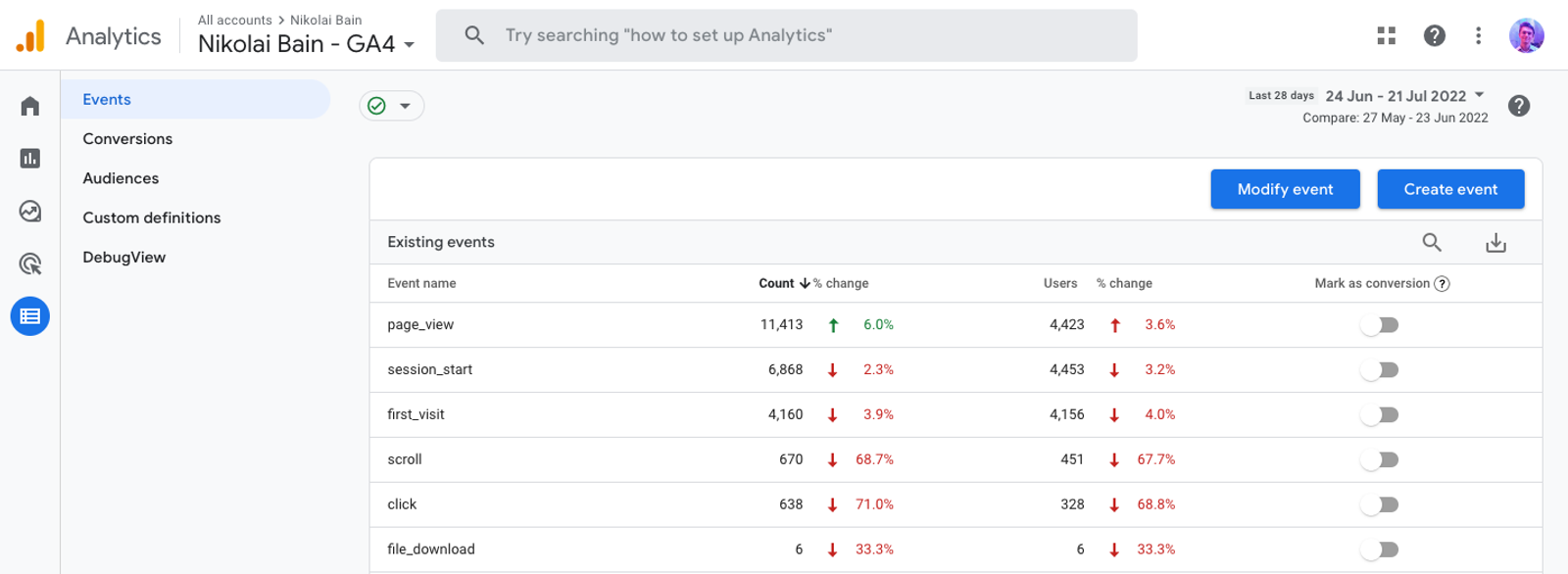
Since our desired event isn’t there, we’re going to set it up manually. Click on the “Create event” button in the top right, then in the new create events screen, click “Create”, again in the top right.
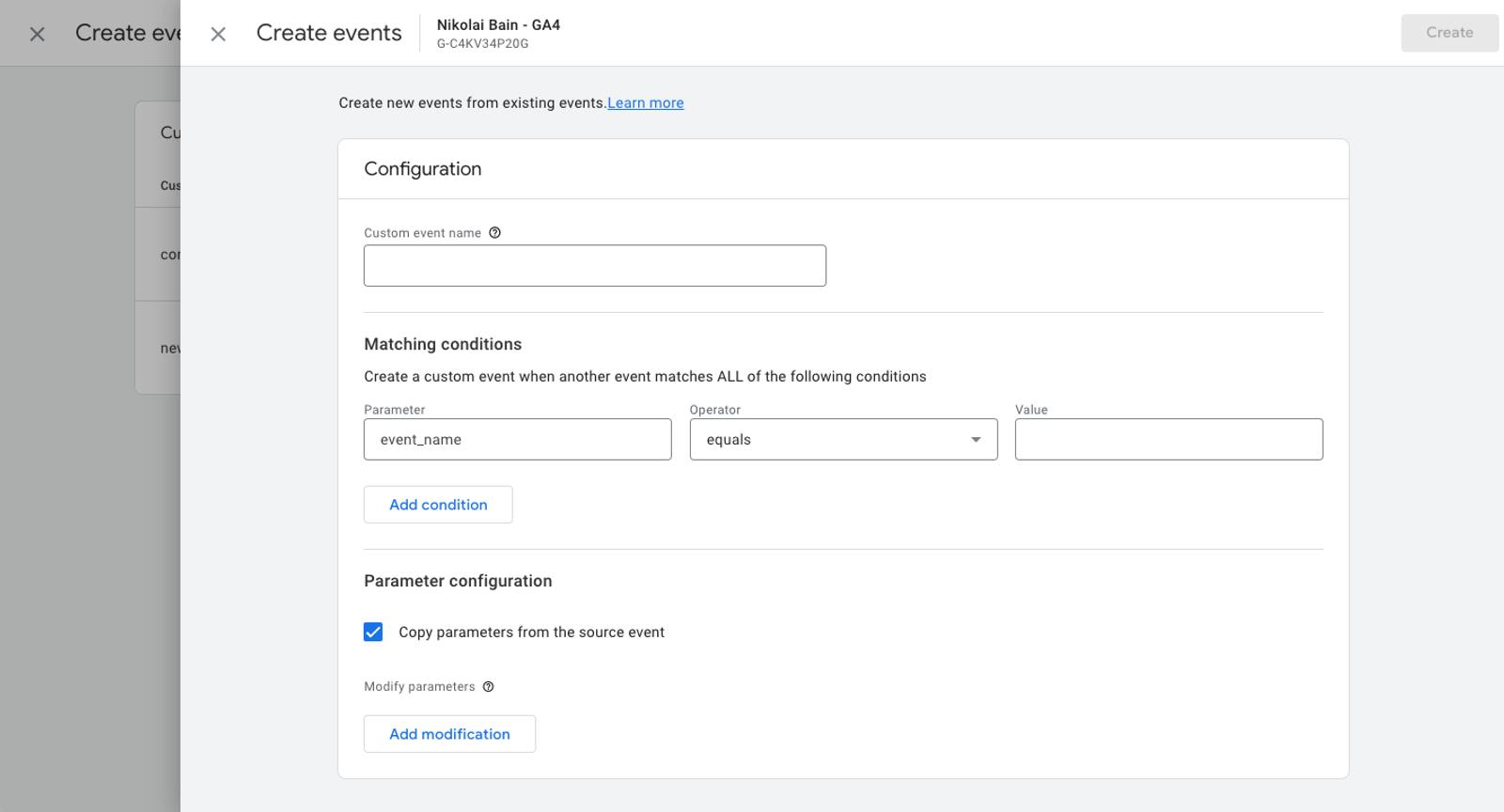
This brings up a new custom events instance. We’re going to give our event a name, and then add some conditions for the event.
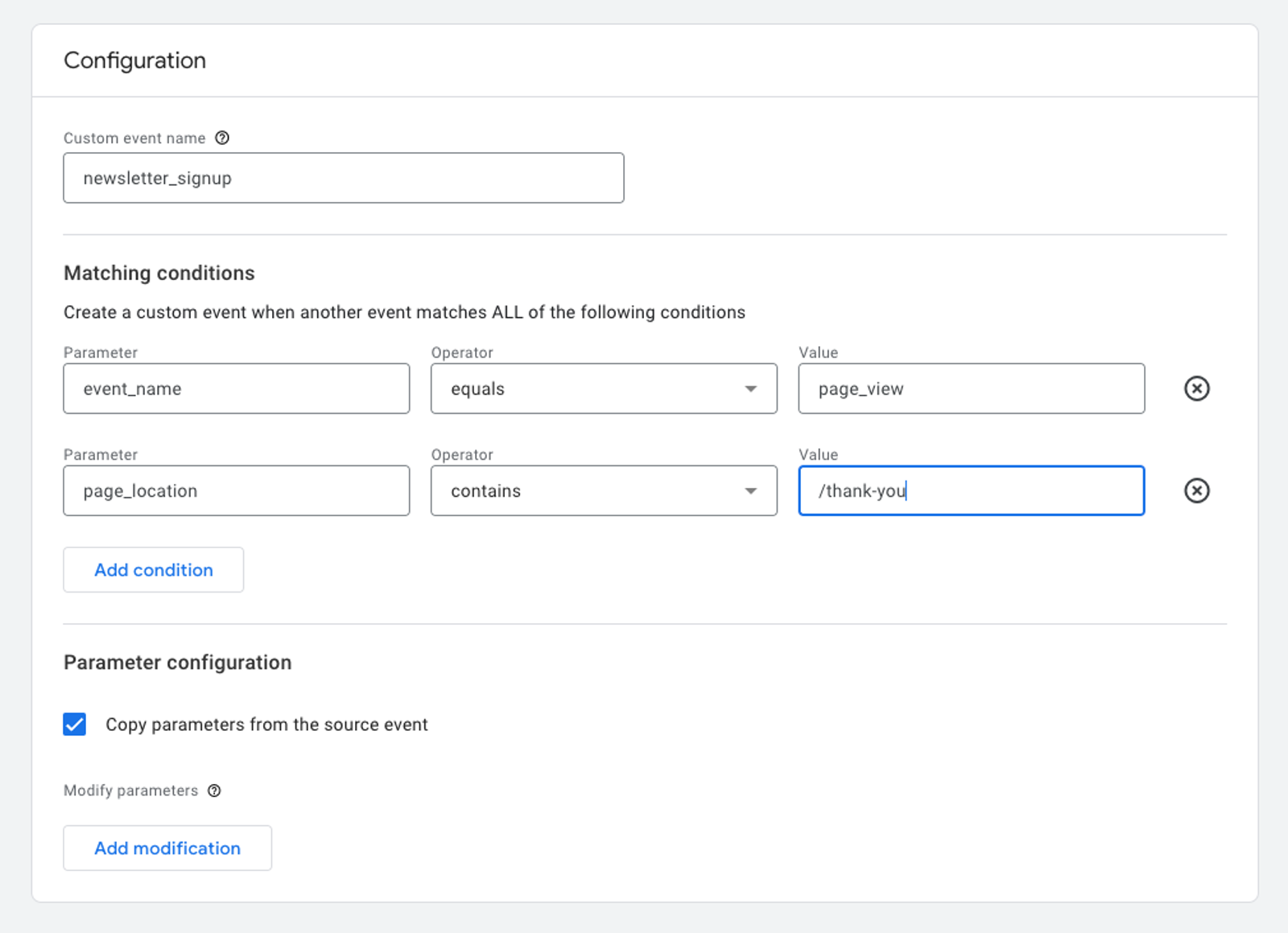
For the name, we can call it whatever we want that describes the event, so let’s call this one “newsletter_signup”.
To keep things consistent, use lower case lettering and underscores of all event details.
Under the matching conditions, we want the following conditions:
event_name equals page_view
page_location contains /thank-you
Our first condition lets the system know we are looking for a page view, and our second condition tells the system to only look for page views when a user’s page location is the Thank You page that we set up.
Make sure you’ve switched the operator from equals to contains to get the page location working. This is because it’s looking at the URL for whether it contains the /thank-you value.
Here’s a view of the full event configuration.
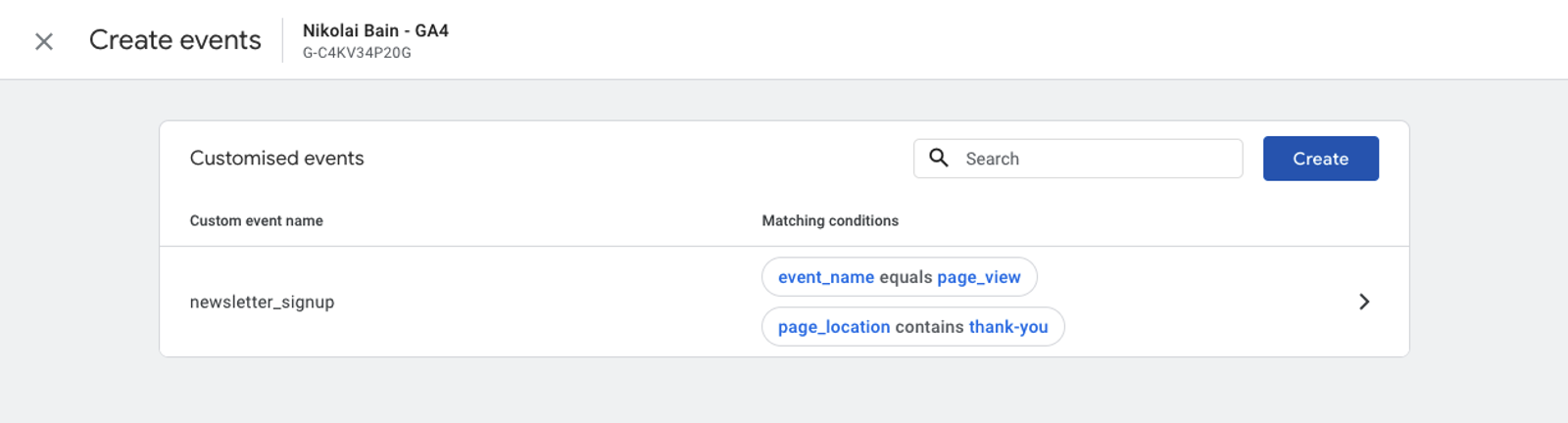
Since this is set-up, we can now click “Create” and our event will show up in the customised events list.
If we go back to events, we can also see that a new event is now on the list, but no events of this kind have been triggered yet. Google Analytics will only tag these new events for new data, not from any of our old data.
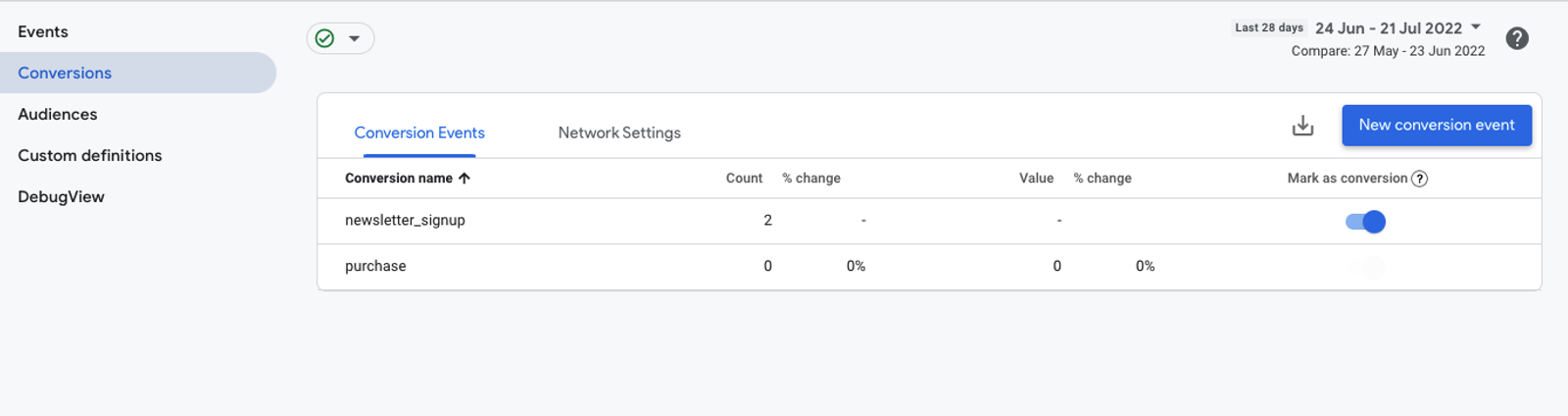
We will have to wait a couple of days for data to start showing up, but for now we can mark our new event as a key event using the “Mark as key event” toggle in the events list. (In the screenshot below this is the blue toggle, which older versions of GA4 labelled “Mark as conversion”.) With this toggle turned on, the event will now be counted as a key event in your reports.
Summary
There is a lot of data that we can explore in GA4, but getting key events set-up is an essential step to be done so that we can clearly record when a user has converted on our Webflow website.
With key events now set-up, this information will now surface in your reports, making it easier to keep track of.
Now that you’ve set-up the key event, you can also work towards optimising the site to convert more customers, and you’ll finally have an accurate number to compare against.